LilL3x on anything other then a reSpeaker is not officially supported, but I know that people will want to use the hardware that they have, and those old AIY kits are just gathering dust!
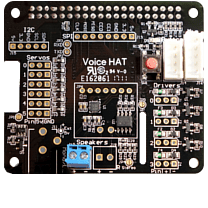
A user shared with me the information to get the HAT up and running, and I wanted to pass this knowledge onto you.
BIG THANKS to mjlill for sharing this with me! See the original post here.
First, you want to update your config,txt file. Open it in nano:
sudo cp /boot/firmware/config.txt /boot/firmware/config.txt.bk
sudo nano /boot/firmware/config.txt
Make the following changes:
#dtparam=audio=on                   # comment this line out
#dtoverlay=vc4-kms-v3d              # comment this line out
dtoverlay=vc4-fkms-v3d              # add this line right below the one above you commented out
#dtoverlay=wm8960-soundcard         # comment this line out, if exsists
dtoverlay=googlevoicehat-soundcard  # add to end
Next, update asound.conf:
sudo cp /etc/asound.conf /etc/asound.conf.bk
sudo nano /etc/asound.conf
Delete the contents of the file and replace with this:
options snd_rpi_googlevoicehat_soundcard index=0
pcm.softvol {
    type softvol
    slave.pcm "hw:sndrpigooglevoi"
    control {
        name Master
        card 0
    }
}
pcm.micboost {
    type route
    slave.pcm "hw:sndrpigooglevoi"
    ttable {
        0.0 30.0
        1.1 30.0
    }
}
pcm.!default {
    type asym
    playback.pcm "plug:softvol"
    capture.pcm "plug:micboost"
}

ctl.!default {
    type hw
    card 0
}
If you are using the AIY HAT, you will also have to tell LilL3x where the button is. On the reSpeaker, it’s mapped to pin 17, but on the AIY it’s mapped to 23. You might as well set the leds as well while you are there:
cd ~/LilL3x
source bin/activate
python config.py w BUTTON 23  # can also set this on the configuration website
python config.py w LED_TYPE AIY_LED
python config.py w LED_PIN 25
Reboot and your sound card should work! Remember that LilL3x runs at startup, so you won’t be able to do any testing until you quit the process. If LilL3x is running, you can always quit her by doing this:
cd ~/LilL3x
touch .quit
log
When the log quits, you are free to do any testing you need to do.

Leave a Reply